|
了解如何在openFrameworks平台和Arduino之间进行通信。
在本篇文章中,我们将学习如何使用Arduino从openFrameworks平台发送和接收数据。
openFrameworks是一个用C ++编写的用于创意编码的开源工具包。它可以用于原型项目创意,并能够生成有趣的UI元素,以及处理它们所需的后端计算。
要在各种操作系统上安装和使用openFrameworks工具包,您可以通过openFrameworks网站上的指南按照Mac和Linux产品的说明进行操作。
本指南将介绍如何将Arduino与openFrameworks连接。例如,当点击程序中的输出窗口时,它将提示连接的Arduino在窗口中显示一条消息并打开连接的LED。
所需的硬件 ● Arduino开发板 ● LED指示灯 ● openFrameworks平台
电路原理图 本篇文章的主要挑战是将LED与Arduino连接。我们通过一个220欧姆的电阻将LED的正极连接到Arduino的引脚13,将其负极连接到Arduino的GND。
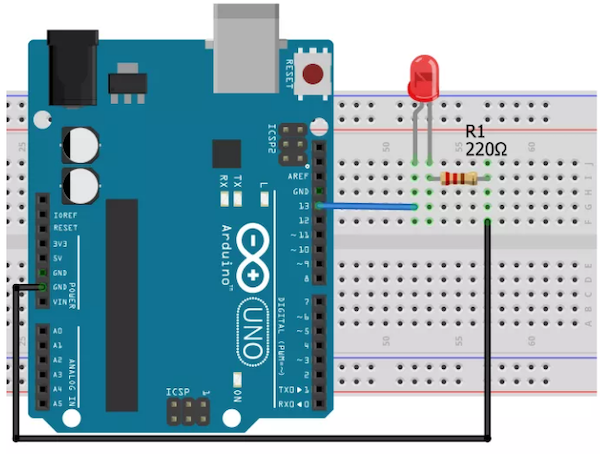
连接到带有220欧姆电阻的Arduino的LED图。
Arduino代码 一旦Arduino从openFrameworks平台接收数据,它就会响应一条消息。
将以下代码上传到Arduino,以便发送和接收数据。
 main.rar
(528 Bytes, 下载次数: 5)
main.rar
(528 Bytes, 下载次数: 5)
注意:避免打开串行监视器,因为openFrameworks使用相同的COM端口。
openFrameworks代码 有三个单独的文件包含openFrameworks代码。 ● Main.cpp:Main.cpp代码运行应用程序并打开输出窗口。 - #include "ofMain.h"
- #include "ofApp.h"
- //========================================================================
- int main( ){
- ofSetupOpenGL(640,480, OF_WINDOW); // <-------- setup the GL context
- // this kicks off the running of my app
- // can be OF_WINDOW or OF_FULLSCREEN
- // pass in width and height too:
- ofRunApp( new ofApp());
-
- }
● OfApp.cpp:OfApp.cpp文件使Arduino和openFrameworks能够相互串行通信。 - #include "ofApp.h"
- //--------------------------------------------------------------
- void ofApp::setup(){
- serialMessage = false;
-
- serial.listDevices();
- vector <ofSerialDeviceInfo> deviceList = serial.getDeviceList();
-
- // this should be set to whatever com port your serial device is connected to.
- // (ie, COM4 on a pc, /dev/tty.... on linux, /dev/tty... on a mac)
- // arduino users check in arduino app....
- int baud = 9600;
- serial.setup(0, baud); //open the first device
- //serial.setup("COM10", baud); // windows example
- //serial.setup("/dev/tty.usbserial-A4001JEC", baud); // mac osx example
- //serial.setup("/dev/ttyUSB0", baud); //linux example
- }
- //--------------------------------------------------------------
- void ofApp::update(){
- if (serialMessage) {
- serialMessage = false;
- serial.writeByte(sendData); // sending the data to arduino
- serial.readBytes(receivedData, 10); // Getting the data from Arduino
- printf("receivedData is %d \n", receivedData); // Printing in ASCII format
- }
- }
- //--------------------------------------------------------------
- void ofApp::draw(){
- ofBackground(0); // Black background
- ofSetColor(255); // Text color is white
- string msg;
- msg += "Click to turn LED \n";
- msg += receivedData;
- ofDrawBitmapString(msg, 200, 200); // Write the data on the output window
- }
- //--------------------------------------------------------------
- void ofApp::mousePressed(int x, int y, int button){
- serialMessage = true;
- }
在setup()函数中,程序将搜索并连接到串行端口。
在update()函数中,当用户单击输出窗口时,它会将数据发送到Arduino。
Arduino处于待机状态以接收信息,因此它会立即响应openFrameworks程序将存储到数组中的消息。
在draw部分中,输出窗口的背景颜色设置为黑色,文本颜色设置为白色 - 这反映在Arduino发送的数据在窗口中的格式。
● OfApp.h:OfApp.h文件是构成标题的代码段。 - #pragma once
- #include "ofMain.h"
- class ofApp : public ofBaseApp{
-
- public:
- void setup();
- void update();
- void draw();
- void mousePressed(int x, int y, int button);
- bool serialMessage; // a flag for sending serial
- char receivedData[10]; // for storing incoming data
- char sendData = 1; // for sending data
-
- ofSerial serial;
- };
如何运行openFrameworks程序 使用openFrameworks项目生成器创建一个新项目,然后使用上面的代码构建。如果输出窗口看起来与下面显示的相同,您将知道项目已成功实施。
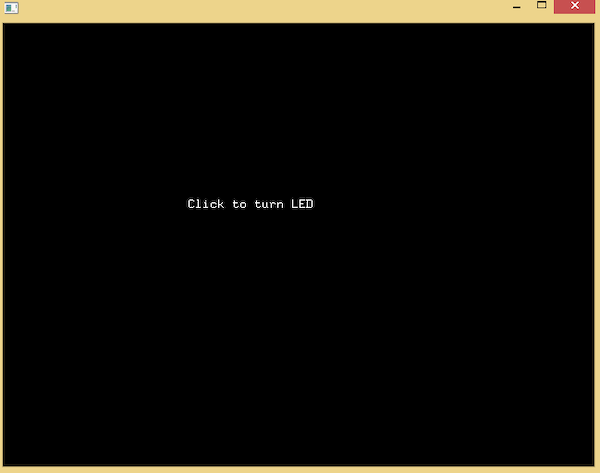
openFrameworks输出窗口,显示来自连接的Arduino的消息。
单击输出窗口内部应打开和关闭LED。 Arduino也应该通过响应一个将出现在窗口中的消息来响应操作,如上所示。 |